Start Learning Free: Master Selenium WebDriver 4 with Python from Zero to Hero and Build Job-Ready Test Automation Skills

Modern websites and web applications are updated constantly.
Development teams add new features, modify existing pages, fix security issues, improve performance, and release changes across different browsers and operating systems.
Every update creates the possibility that something may stop working.
A login form may reject valid users. A checkout button may become unresponsive. A page may display correctly in one browser but fail in another. A navigation menu may break after a design update.
Test automation helps teams identify these problems faster and more consistently.
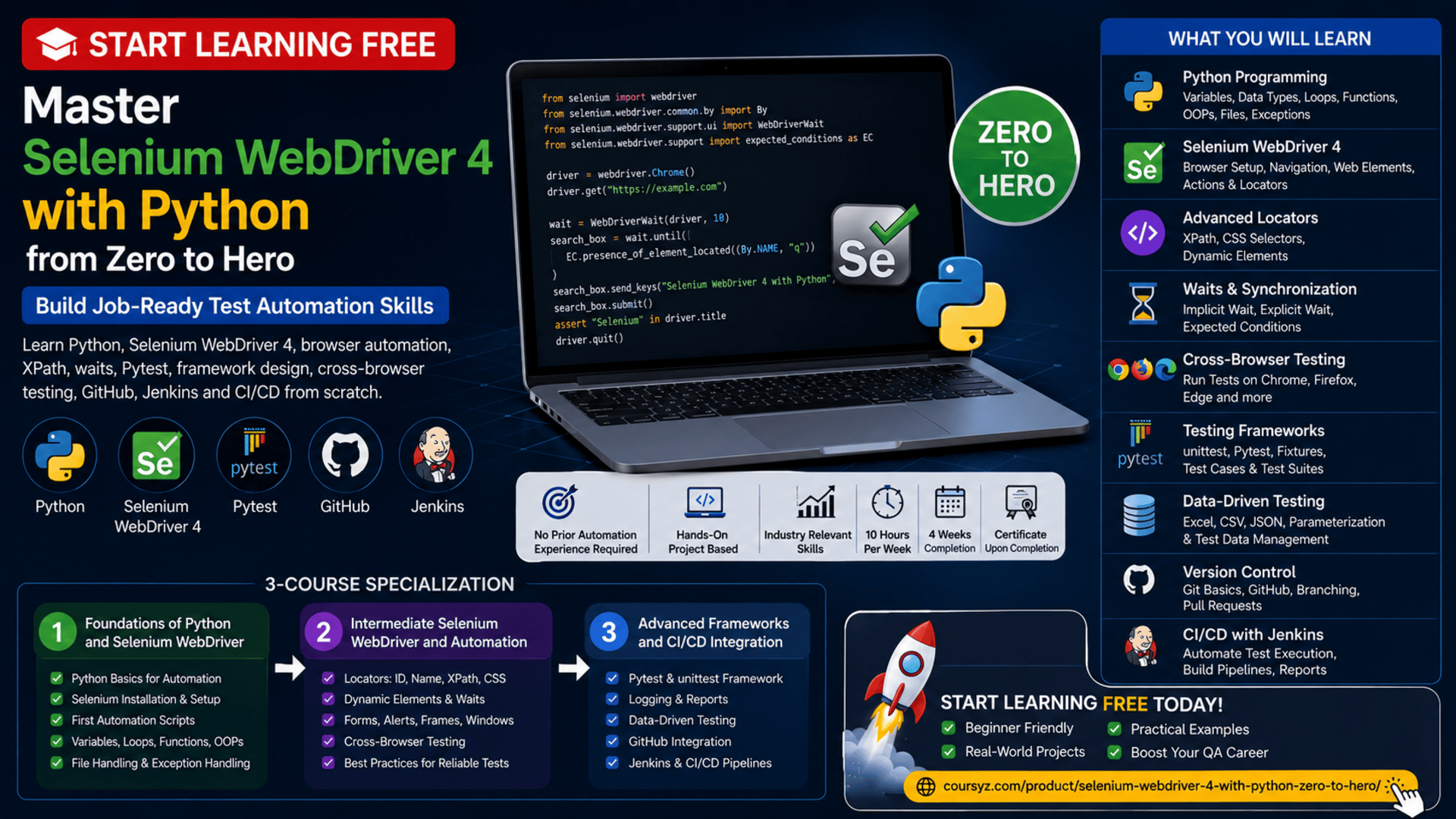
The Selenium WebDriver 4 with Python – Zero to Hero Specialization offers a structured learning path for beginners who want to move from basic Python programming to professional web-test automation, reusable frameworks, cross-browser testing, and continuous integration.
You may be able to start learning free by opening one of the individual courses and checking whether selected Preview lessons are currently available.
Throughout the program, you will learn how to write Python automation scripts, control browsers with Selenium WebDriver, locate page elements, handle dynamic content, create reliable test cases, organize automation frameworks, manage test data, use GitHub, and connect automated testing with Jenkins.
Why Learn Selenium WebDriver with Python?
Manual testing is important, but repeatedly checking the same application features can take a significant amount of time.
Imagine testing a website after every update and manually confirming that:
- The login page works
- Registration accepts valid information
- Password recovery sends an email
- Navigation links open correctly
- Search returns expected results
- Forms display validation messages
- Products can be added to a cart
- Checkout calculations are correct
- Pages work in multiple browsers
Automation allows these repetitive checks to run through scripts.
Selenium WebDriver can control a browser in a way that simulates user actions.
Python provides readable syntax and a large ecosystem for writing, organizing, and maintaining those tests.
Together, Selenium and Python can help teams:
- Reduce repetitive manual testing
- Execute regression tests faster
- Improve test consistency
- Test multiple browsers
- Reuse automation code
- Detect defects earlier
- Support frequent releases
- Integrate tests with CI/CD pipelines
- Generate logs and reports
- Build scalable automation frameworks
What Is Selenium WebDriver?
Selenium WebDriver is a browser-automation tool used to control web browsers programmatically.
It can perform actions such as:
- Opening a browser
- Visiting a webpage
- Clicking buttons
- Entering text
- Selecting options
- Submitting forms
- Reading visible content
- Switching between windows
- Working with alerts
- Taking screenshots
- Closing the browser
A simple Selenium test may:
- Open a browser.
- Navigate to a login page.
- Enter a username and password.
- Click the login button.
- Verify that the correct dashboard appears.
- Close the browser.
This allows developers and testers to repeat the same process consistently.
Why Use Python for Test Automation?
Python is popular in automation because its syntax is relatively clear and readable.
It can be used to:
- Write Selenium scripts
- Organize test cases
- Process test data
- Read files
- Generate logs
- Create reusable functions
- Connect with APIs
- Manage reports
- Integrate with testing frameworks
- Support CI/CD workflows
Python also supports important programming concepts needed for professional automation, including:
- Variables
- Data types
- Conditions
- Loops
- Functions
- Classes
- Objects
- Inheritance
- Exception handling
- File input and output
- Modules and packages
About the Selenium WebDriver 4 with Python Specialization
The specialization contains three progressive courses:
- Foundations of Python and Selenium WebDriver
- Intermediate Selenium WebDriver and Automation
- Advanced Automation Frameworks and Continuous Integration
The learning path is designed for beginners and is estimated at approximately:
- Three courses
- Four weeks
- Around 10 hours per week
- Flexible, self-paced learning
No previous automation-testing experience is required.
The program starts with Python fundamentals before introducing browser automation, advanced element location, wait strategies, testing frameworks, logging, data-driven testing, GitHub, Jenkins, and CI/CD.
What You Will Learn
Throughout the specialization, you will learn how to:
- Install and configure Python
- Install Selenium WebDriver with pip
- Configure browser drivers
- Write Python automation scripts
- Use variables and data types
- Apply conditions and loops
- Create reusable functions
- Work with lists, tuples, sets, and dictionaries
- Apply object-oriented programming
- Handle exceptions
- Read and write files
- Launch multiple browsers
- Navigate web pages
- Locate HTML elements
- Use IDs, names, XPath, and CSS selectors
- Handle dynamic web elements
- Apply implicit and explicit waits
- Automate forms
- Work with alerts, frames, and windows
- Run cross-browser tests
- Create tests with unittest and Pytest
- Build reusable test frameworks
- Add logging
- Manage test cases and test suites
- Perform data-driven testing
- Use Git and GitHub
- Integrate Selenium tests with Jenkins
- Add automated tests to CI/CD pipelines
Course 1: Foundations of Python and Selenium WebDriver
Estimated duration: 12 hours
The first course builds the programming foundation needed for test automation.
It introduces Python before connecting Python scripts with Selenium WebDriver.
Topics include:
- Python installation
- Development environments
- Variables
- Data types
- Operators
- Conditional statements
- Loops
- Functions
- Lists
- Tuples
- Sets
- Dictionaries
- Classes
- Objects
- Object-oriented programming
- Exception handling
- File input and output
- Selenium installation
- Initial browser automation
Install Python and Selenium WebDriver
Before writing browser tests, you need a working automation environment.
A typical setup may include:
- Python
- pip
- A code editor or development environment
- Selenium package
- Chrome, Firefox, Edge, or another supported browser
- Appropriate browser-driver configuration
Selenium can be installed through pip:
pip install selenium
A basic Python script can then open a browser:
from selenium import webdriver

driver = webdriver.Chrome()
driver.get("https://example.com")

print(driver.title)

driver.quit()
This script launches a browser, opens a page, prints its title, and closes the browser.
Understand Python Variables and Data Types
Variables store information used by your tests.
Examples include:
browser_name = "Chrome"
timeout_seconds = 10
test_passed = True
Common Python data types include:
- Strings
- Integers
- Floating-point numbers
- Booleans
- Lists
- Tuples
- Dictionaries
- Sets
Automation scripts use these values to store credentials, URLs, expected results, test data, and configuration settings.
Use Conditions in Test Scripts
Conditional statements allow scripts to make decisions.
Example:
page_title = driver.title

if page_title == "Dashboard":
    print("Login test passed")
else:
    print("Login test failed")
Conditions can verify:
- Page titles
- Text content
- Element visibility
- URLs
- Validation messages
- Login status
- Test results
Use Loops for Repeated Testing
Loops allow you to repeat actions.
Example:
browsers = ["Chrome", "Firefox", "Edge"]

for browser in browsers:
    print(f"Running tests in {browser}")
Loops can be used to:
- Test multiple users
- Check several links
- Process test data
- Run the same test in different browsers
- Validate lists of webpage elements
Create Reusable Functions
Functions reduce repeated code.
Example:
def login(driver, email, password):
    driver.find_element("id", "email").send_keys(email)
    driver.find_element("id", "password").send_keys(password)
    driver.find_element("id", "login-button").click()
The same function can be reused in many test cases.
Reusable functions make an automation framework easier to maintain.
Work with Python Collections
Collections help organize test information.
A list may store test users:
test_users = [
    "[email protected]",
    "[email protected]",
    "[email protected]"
]
A dictionary may store login information:
test_account = {
    "email": "[email protected]",
    "password": "SecurePassword123"
}
Collections are especially useful in data-driven testing.
Apply Object-Oriented Programming
Object-oriented programming helps organize larger automation projects.
A class may represent a webpage:
class LoginPage:
    def __init__(self, driver):
        self.driver = driver

    def enter_email(self, email):
        self.driver.find_element("id", "email").send_keys(email)

    def enter_password(self, password):
        self.driver.find_element("id", "password").send_keys(password)

    def click_login(self):
        self.driver.find_element("id", "login-button").click()
This approach supports the Page Object Model, a common automation design pattern.
Object-oriented programming can improve:
- Code reuse
- Test maintenance
- Readability
- Scalability
- Separation of responsibilities
Handle Exceptions
Automation scripts may encounter unexpected conditions.
Examples include:
- Missing elements
- Slow pages
- Closed browsers
- Incorrect selectors
- Network problems
- Invalid test data
Python exception handling allows scripts to respond safely:
try:
    login_button = driver.find_element("id", "login-button")
    login_button.click()
except Exception as error:
    print(f"Login test failed: {error}")
Professional frameworks should also log errors and collect evidence such as screenshots.
Read and Write Files
Automation projects may use files for:
- Test data
- Configuration
- Logs
- Reports
- Credentials
- Environment settings
Python file handling allows scripts to read and write this information.
Example:
with open("test-results.txt", "a", encoding="utf-8") as file:
    file.write("Login test passed\n")
Course 2: Intermediate Selenium WebDriver and Automation
Estimated duration: 13 hours
The second course focuses on practical browser automation across multiple browsers and operating systems.
Topics include:
- Selenium WebDriver configuration
- Browser navigation
- Web elements
- XPath
- CSS selectors
- Dynamic elements
- Wait strategies
- Forms
- Alerts
- Frames
- Windows and tabs
- Browser compatibility
- Cross-browser testing
- Test reliability
Launch and Control Browsers
Selenium WebDriver can control supported browsers such as:
- Google Chrome
- Mozilla Firefox
- Microsoft Edge
- Safari
A browser session may include:
- Opening a page
- Maximizing the window
- Refreshing the page
- Moving backward and forward
- Reading the URL
- Reading the page title
- Closing a tab
- Ending the session
Example:
from selenium import webdriver

driver = webdriver.Chrome()
driver.maximize_window()
driver.get("https://example.com")

print(driver.current_url)
print(driver.title)

driver.quit()
Locate Web Elements
Selenium must identify webpage elements before interacting with them.
Common locator strategies include:
- ID
- Name
- Class name
- Tag name
- Link text
- Partial link text
- XPath
- CSS selector
Example:
email_field = driver.find_element("id", "email")
email_field.send_keys("[email protected]")
Choosing stable locators is important because fragile selectors can make tests unreliable.
Use XPath
XPath can locate elements based on their position, attributes, text, or relationship to other elements.
Examples:
driver.find_element("xpath", "//button[@type='submit']")
driver.find_element("xpath", "//a[contains(text(), 'Forgot Password')]")
XPath is powerful, especially when elements do not have unique IDs.
However, selectors should remain readable and avoid depending excessively on page position.
Use CSS Selectors
CSS selectors provide another flexible way to locate elements.
Examples:
driver.find_element("css selector", "input[name='email']")
driver.find_element("css selector", ".login-form button[type='submit']")
CSS selectors can be concise and efficient.
Handle Dynamic Web Elements
Some elements change their IDs, classes, location, or content whenever a page loads.
Dynamic applications may also load content after the initial page appears.
Automation scripts must account for:
- Elements that appear later
- Changing attributes
- AJAX requests
- Animated components
- Hidden content
- Dynamic tables
Reliable tests use stable selectors and appropriate waiting strategies.
Use Implicit Waits
An implicit wait tells Selenium to wait for a period when searching for an element.
driver.implicitly_wait(10)
This can reduce immediate failures when pages take a short time to load.
However, implicit waits apply globally and may be less precise than explicit waits.
Use Explicit Waits
Explicit waits pause until a specific condition becomes true.
from selenium.webdriver.common.by import By
from selenium.webdriver.support.ui import WebDriverWait
from selenium.webdriver.support import expected_conditions as EC

wait = WebDriverWait(driver, 10)

login_button = wait.until(
    EC.element_to_be_clickable((By.ID, "login-button"))
)

login_button.click()
Explicit waits can check whether an element is:
- Visible
- Clickable
- Present
- Selected
- Missing
- Associated with specific text
They are usually more reliable than fixed delays.
Avoid Unnecessary Fixed Delays
Using time.sleep() pauses the script for a fixed period.
Although it may be useful in limited situations, excessive fixed waiting can make tests:
- Slow
- Unreliable
- Difficult to maintain
- Sensitive to network speed
Condition-based waits are generally more efficient.
Automate Forms
Selenium can automate:
- Text fields
- Password fields
- Checkboxes
- Radio buttons
- Dropdown menus
- File uploads
- Submit buttons
Example:
from selenium.webdriver.support.ui import Select

country_dropdown = Select(
    driver.find_element("id", "country")
)

country_dropdown.select_by_visible_text("United States")
A test should verify both successful submissions and expected validation errors.
Handle Alerts
Web applications may display browser alerts.
Selenium can accept, dismiss, or read alert text.
alert = driver.switch_to.alert

print(alert.text)
alert.accept()
Tests may verify confirmation messages, warning dialogs, or cancellation behavior.
Work with Frames
Some webpage content is displayed inside frames or iframes.
Selenium must switch into the frame before interacting with its content.
driver.switch_to.frame("payment-frame")
After completing the action, return to the main page:
driver.switch_to.default_content()
Manage Multiple Windows and Tabs
A test may open another tab or browser window.
Selenium can switch between window handles:
original_window = driver.current_window_handle

for window_handle in driver.window_handles:
    if window_handle != original_window:
        driver.switch_to.window(window_handle)
        break
This is useful for testing:
- Payment pages
- Social-login windows
- External documentation
- Download pages
- Third-party services
Perform Cross-Browser Testing
A website may behave differently in different browsers.
Cross-browser testing checks whether important features work consistently in:
- Chrome
- Firefox
- Edge
- Safari
Potential differences include:
- Layout
- JavaScript behavior
- Form controls
- Driver support
- Timing
- Browser permissions
Automating these tests can help teams identify compatibility problems before release.
Course 3: Advanced Automation Frameworks and Continuous Integration
Estimated duration: 14 hours
The final course focuses on creating maintainable automation frameworks and connecting them with professional development workflows.
Topics include:
- Python logging
- unittest
- Pytest
- Test cases
- Test suites
- Fixtures
- Data-driven testing
- Cross-browser execution
- Framework architecture
- Git
- GitHub
- Jenkins
- Continuous integration
- CI/CD pipelines
- Reporting
- Test execution
Why Build an Automation Framework?
A few independent test scripts may be manageable.
As the number of tests grows, the project needs structure.
An automation framework can define:
- Test organization
- Browser setup
- Page objects
- Test data
- Configuration
- Logging
- Reporting
- Error handling
- Screenshots
- Cross-browser execution
- CI/CD integration
A good framework improves:
- Reusability
- Scalability
- Maintainability
- Readability
- Test execution
- Team collaboration
Use the Page Object Model
The Page Object Model separates webpage interaction from test logic.
A page class contains element locators and page actions.
The test then uses those actions.
class LoginPage:
    EMAIL_FIELD = ("id", "email")
    PASSWORD_FIELD = ("id", "password")
    LOGIN_BUTTON = ("id", "login-button")

    def __init__(self, driver):
        self.driver = driver

    def login(self, email, password):
        self.driver.find_element(*self.EMAIL_FIELD).send_keys(email)
        self.driver.find_element(*self.PASSWORD_FIELD).send_keys(password)
        self.driver.find_element(*self.LOGIN_BUTTON).click()
The test remains simple:
login_page = LoginPage(driver)
login_page.login("[email protected]", "SecurePassword123")
When a page changes, you update the page object instead of every test.
Use Python Logging
Logging records information about test execution.
A log may capture:
- Test start time
- Browser used
- Steps completed
- Errors
- Warnings
- Expected results
- Actual results
- Test completion status
Example:
import logging

logging.basicConfig(
    filename="automation.log",
    level=logging.INFO,
    format="%(asctime)s - %(levelname)s - %(message)s"
)

logging.info("Login test started")
Logs make failures easier to investigate.
Write Tests with unittest
Python includes the unittest framework.
A basic test may look like:
import unittest
from selenium import webdriver

class LoginTest(unittest.TestCase):

    def setUp(self):
        self.driver = webdriver.Chrome()

    def test_login_page_title(self):
        self.driver.get("https://example.com/login")
        self.assertEqual(self.driver.title, "Login")

    def tearDown(self):
        self.driver.quit()

if __name__ == "__main__":
    unittest.main()
Common unittest features include:
- Setup methods
- Teardown methods
- Assertions
- Test classes
- Test suites
- Reports
Build Tests with Pytest
Pytest is a popular testing framework that supports concise test syntax and powerful features.
Example:
def test_page_title(driver):
    driver.get("https://example.com")
    assert driver.title == "Example Domain"
Pytest can support:
- Fixtures
- Parameterization
- Markers
- Plugins
- Reports
- Parallel execution
- Browser configuration
- Data-driven testing
Use Fixtures
Fixtures prepare data or environments before a test.
A fixture can:
- Launch a browser
- Create a test account
- Load configuration
- Connect to a database
- Prepare test data
- Close resources after the test
Example:
import pytest
from selenium import webdriver

@pytest.fixture
def driver():
    browser = webdriver.Chrome()
    yield browser
    browser.quit()
Perform Data-Driven Testing
Data-driven testing runs the same test with different inputs.
For example, a login test can evaluate:
- Valid credentials
- Incorrect password
- Missing email
- Invalid email format
- Locked account
Using Pytest parameterization:
import pytest

@pytest.mark.parametrize(
    "email,password",
    [
        ("[email protected]", "ValidPassword"),
        ("[email protected]", "WrongPassword"),
        ("", "MissingEmail")
    ]
)
def test_login(email, password):
    print(email, password)
This reduces duplicated test code.
Organize Test Suites
A test suite groups related tests.
Possible suites include:
- Smoke tests
- Regression tests
- Login tests
- Checkout tests
- Search tests
- Browser-compatibility tests
- Security-related UI tests
Organized suites allow teams to run the most appropriate tests for each release.
Use Git and GitHub
Version control helps automation teams manage framework changes.
Git and GitHub can be used to:
- Track test-code history
- Review changes
- Create branches
- Merge updates
- Collaborate
- Connect projects to Jenkins
- Store configuration
- Manage framework releases
Never store passwords, API keys, or other secrets directly in a public repository.
Integrate Selenium with Jenkins
Jenkins can automatically run Selenium tests when specific events occur.
A Jenkins pipeline may:
- Download the latest project from GitHub.
- Install Python dependencies.
- Configure the browser environment.
- Run Pytest or unittest tests.
- Generate reports.
- Save screenshots and logs.
- Notify the team when tests fail.
This allows automated testing to become part of the software-delivery process.
Understand Continuous Integration
Continuous integration involves frequently combining code changes and automatically validating them.
An automation pipeline can run when:
- A developer pushes code
- A pull request is opened
- A build is created
- A deployment is prepared
- A scheduled regression run begins
Automated tests provide fast feedback about whether a change has broken existing functionality.
Connect Testing to CI/CD
A CI/CD pipeline may include:
- Source-code checkout
- Dependency installation
- Application build
- Unit tests
- API tests
- Selenium UI tests
- Report generation
- Deployment
- Post-deployment validation
UI tests are usually slower than unit tests, so teams often choose a smaller smoke suite for every build and run full regression tests on a schedule.
Applied Learning Projects
The specialization includes practical activities that guide learners through building and improving automation frameworks.
Projects may involve:
- Installing Python and Selenium
- Automating real web applications
- Creating browser tests
- Using advanced locators
- Applying wait strategies
- Writing Pytest tests
- Creating reusable page objects
- Adding logging
- Managing test data
- Running cross-browser tests
- Connecting GitHub
- Configuring Jenkins
- Adding tests to a CI/CD workflow
These projects help turn theoretical concepts into practical automation experience.
Tools and Technologies Covered
The program introduces or uses:
- Python
- Selenium WebDriver 4
- Pytest
- unittest
- Git
- GitHub
- Jenkins
- Chrome
- Firefox
- Edge
- XPath
- CSS selectors
- Logging
- File input and output
- Test data
- Page Object Model
- Cross-browser testing
- CI/CD
- Browser-development tools
Who Should Take This Specialization?
The program may be suitable for:
Manual Testers
Manual testers can develop the technical skills needed to move into automation testing.
Quality Assurance Professionals
QA professionals can learn how to create repeatable browser tests and integrate them into release workflows.
Complete Beginners
The program begins with Python fundamentals and does not require prior automation experience.
Python Developers
Python developers can expand into software testing and browser automation.
Web Developers
Developers can use Selenium to test their applications and reduce regression problems.
Software Engineering Students
Students can add automation-testing projects to their portfolios.
DevOps Professionals
DevOps learners can understand how browser tests connect with Jenkins and CI/CD pipelines.
Freelancers
Freelancers can offer web-testing and automation services to clients.
How to Start Learning Free
The complete specialization is not available entirely free.
However, selected Preview lessons may sometimes be available inside an individual course.
Follow these steps:
- Open the program page using the call-to-action button in this article.
- Scroll down to the three individual courses.
- Select the course you want to explore.
- Open the selected course page.
- Click Enroll.
- Sign in or create an account.
- Look for Preview instead of beginning a paid trial.
- Open any available lessons and start learning free.
Important Access Notice
The Preview option may not be displayed for every course, account, or location.
When Preview is unavailable, check whether the enrollment page offers:
- Financial aid
- Scholarships
- Employer-sponsored learning
- Educational-institution access
- A limited subscription trial
Complete courses, graded assignments, projects, and the certificate may require paid enrollment.
Always review current access and payment terms before confirming.
How to Get the Best Results
Write the Scripts Yourself
Do not only watch demonstrations. Recreate every automation example.
Practise on Safe Test Websites
Use websites designed for automation practice or applications you have permission to test.
Avoid Fragile Selectors
Prefer stable IDs, names, or meaningful attributes over long position-based XPath expressions.
Replace Fixed Delays
Use explicit waits whenever possible instead of relying on long sleep() commands.
Build a Framework Gradually
Start with a few reliable tests before adding reports, configuration, parallel execution, and CI/CD.
Use GitHub
Publish your framework with a professional README and remove all sensitive information.
Capture Failure Evidence
Save logs and screenshots when a test fails.
Run Tests Across Browsers
Confirm that your scripts work in Chrome, Firefox, and Edge when relevant.
Add Jenkins Integration
Automate at least one smoke-test suite through Jenkins.
Document Your Project
Include:
- Project overview
- Technologies
- Framework architecture
- Installation instructions
- Browser requirements
- Test execution commands
- Reports
- Screenshots
- Known limitations
- Future improvements
Portfolio Project Ideas
Consider building automation frameworks for:
- E-commerce checkout
- User registration
- Login and password recovery
- Online booking
- Product search
- Contact forms
- Customer dashboards
- Learning platforms
- Project-management applications
- Content websites
A strong portfolio project could include:
- Page Object Model
- Pytest
- Fixtures
- Parameterized tests
- Logging
- Screenshots
- Test reports
- Cross-browser execution
- GitHub Actions or Jenkins integration
- CI/CD documentation
Potential Career Opportunities
After developing sufficient testing and programming experience, learners may explore roles such as:
- Junior automation tester
- Selenium automation engineer
- QA automation engineer
- Software test engineer
- Python automation tester
- Web application tester
- Quality assurance analyst
- Test-development engineer
- Junior SDET
- Automation-testing intern
Completing the specialization does not guarantee employment.
Employers may also evaluate:
- Python proficiency
- Selenium knowledge
- Locator strategies
- Framework design
- Pytest experience
- Git and GitHub usage
- Jenkins knowledge
- CI/CD understanding
- Debugging ability
- Portfolio quality
- Communication skills
Frequently Asked Questions
Can I start learning free?
You can check individual courses for selected Preview lessons. Free access is not guaranteed.
Is previous automation experience required?
No. The program is designed for beginners and starts with foundational Python concepts.
How many courses are included?
The specialization contains three courses.
How long does the program take?
The estimated completion time is approximately four weeks at around 10 hours per week.
Does it teach Python?
Yes. The first course covers Python variables, data types, control structures, functions, collections, classes, objects, and reusable code.
Does it cover Selenium WebDriver 4?
Yes. Selenium WebDriver 4 is the primary browser-automation technology used throughout the specialization.
Will I learn XPath and CSS selectors?
Yes. The second course covers advanced element location using XPath and CSS selectors.
Are wait strategies included?
Yes. The curriculum covers synchronization and efficient wait strategies for reliable execution.
Does the program include Pytest?
Yes. The advanced course covers Pytest and unittest.
Will I learn data-driven testing?
Yes. You will learn how to manage test data and run tests with multiple data sets.
Is cross-browser testing included?
Yes. You will learn how to run browser automation across supported browsers and operating systems.
Are Git and GitHub included?
Yes. Version control and GitHub integration are included.
Does the program cover Jenkins?
Yes. The final course includes Jenkins and continuous-integration workflows.
Does Preview access include the certificate?
No. Preview access generally does not include complete graded work, projects, or the certificate.
Start Learning Free and Build Job-Ready Test Automation Skills
Master Python, Selenium WebDriver 4, XPath, CSS selectors, browser automation, Pytest, unittest, logging, data-driven testing, GitHub, Jenkins, cross-browser testing, and CI/CD.
Select an individual course and check whether Preview is available. Free preview access is not guaranteed. Complete courses, graded projects, and the certificate may require paid enrollment. Financial aid may be available.